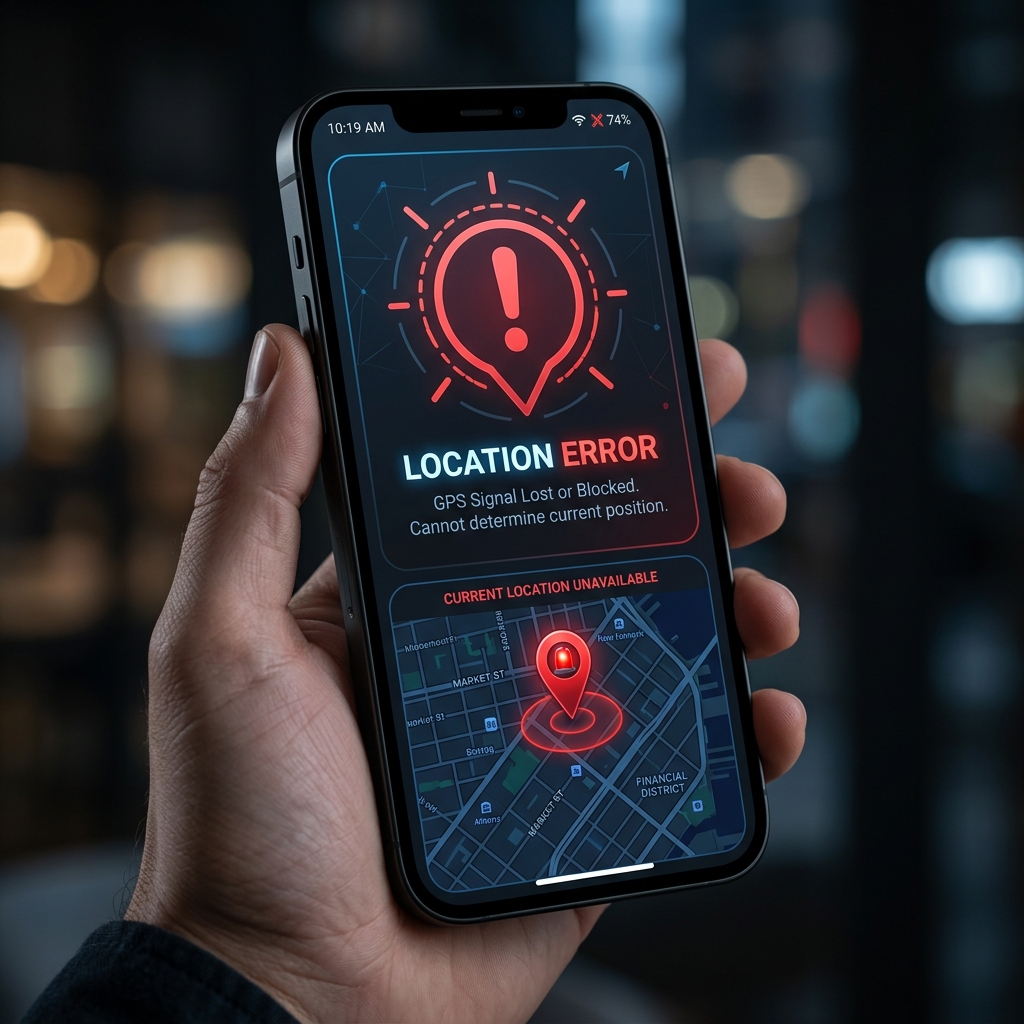
Since mid-2024, Niantic has implemented aggressive location integrity checks in Pokémon GO. As a result, millions of players using standard location changers or mock location tools encounter the dreaded "Failed to detect location (12)" error.
This guide explains why this happens and provides the most reliable method in 2026 to bypass Error 12 safely on Android.
What causes Location Error 12 in Pokémon GO?
In the past, Pokémon GO only checked if the "Mock Locations" setting was enabled in Android Developer Options. If a location app didn't hide its mock status, the game showed Error 12.
Today, Niantic has upgraded its security to perform:
- API checks: Directly queries the Android Location Services for hardware-level GPS signals.
- Package scanning: Scans for known location-spoofing packages running in the background.
- Integrity checks: Checks if the app running is the authentic Google Play version without hook frameworks active.
If your phone outputs fake coordinates without system-level integration or a specialized launcher, the game blocks you with Error 12.
The solution: iAnyMove Customized APK
To play Pokémon GO without encountering Error 12, you must bypass the game's integrity and mock location check. The safest and most user-friendly method is using a custom-signed Pokémon GO APK patched with Binder, location, and sign-check overrides.
This is where iAnyMove excels. It automates the extraction, patching, and signing process so you do not need to root your phone or install dangerous system modules.
How to use iAnyMove to bypass Error 12:
- Download the iAnyMove client: Visit the official iAnyMove website or download the Android client from our download portal.
- Generate the custom Pokémon GO APK: Within the iAnyMove interface, follow the step-by-step instructions to convert the standard Pokémon GO APK into a signed, customized version. This patch handles binder hooks and redirects location requests internally.
- Install the custom APK: Uninstall the official Pokémon GO app, then install the customized version generated by iAnyMove.
- Log in and play: Launch the game, sign in using your Google or Niantic Trainer Club credentials, and use the built-in joystick or route navigation to explore.
Best practices to avoid bans (Cooldown Rules)
Using a custom APK bypasses Error 12, but you must still play realistically to avoid account restrictions (soft bans or strikes). Always follow the Cooldown Chart:
| Distance | Cooldown Time |
|---|---|
| 1 km | 30 seconds |
| 5 km | 2 minutes |
| 10 km | 6 minutes |
| 50 km | 20 minutes |
| 100 km | 35 minutes |
| 500 km | 60 minutes |
| 1000+ km | 120 minutes |
Essential Safety Tips:
- Wait before actions: Do not catch a Pokémon, spin a PokéStop, or join a raid immediately after teleporting. Always wait for the cooldown timer to expire.
- Keep walking speeds realistic: Set your speed between 9 km/h and 10.5 km/h for egg hatching. Do not exceed 30 km/h, as Niantic tags rapid movement as suspicious.
- Do not jump back and forth: Stick to a single city or country for a full play session. Do not teleport across continents multiple times a day.
Frequently asked questions
Does this require root?
No. The iAnyMove customized APK works on non-rooted Android devices.
Can I log in with Google?
Yes. The custom APK has built-in web login support, enabling you to sign in with your existing Google and Facebook accounts.
Is the customized APK safe?
Our team keeps the patches updated against the latest Pokémon GO client releases to ensure the highest safety margins. However, location modification always carries a nominal risk, so we recommend playing on an alt account first.